

Copilot Studio workflows can now call Microsoft 365 Copilot directly. Microsoft Learn’s article Add a Copilot node to a workflow, listed on the Copilot Studio What’s new page and most recently updated on October 21, 2026, describes a node that can run Copilot Chat with a message, optionally target an agent such as Researcher, Analyst, or an Agent Builder agent, start or resume a Copilot Cowork task, and pass the response to later steps in the workflow.
That is a useful building block. It is also the first time many organizations will have a scheduled, unattended automation that reasons over a specific person’s mailbox. The documentation puts the governance point in one sentence, and it is worth reading twice: “Whatever that user can see in Microsoft 365, the workflow can use.”
What the Copilot node does
| Capability | What the documentation says |
|---|---|
| Copilot Chat | Sends a message to Copilot Chat, optionally targeting an agent such as Researcher, Analyst, or an Agent Builder agent |
| Copilot Cowork | Starts a new Cowork task or resumes an existing one |
| Output | Passes the response to later workflow steps |
| Grounding | “Grounded in the connected user’s mail, files, calendar, chats, and other Microsoft 365 content” |
| Identity | Runs as the Microsoft 365 account selected in the node’s Connection field |
| Billing | Workflows use usage-based billing on the Microsoft Copilot harness; Cowork tasks use Copilot Credits |
Workflows themselves are the deterministic automation experience in Copilot Studio. According to the workflows overview, they run on the harness Microsoft renamed last week from the GitHub Copilot harness to the Microsoft Copilot harness. They can start on demand, on a schedule, or from an event, and they combine AI actions, human-in-the-loop steps, connectors, and control logic. The Copilot node adds Microsoft 365 Copilot and Cowork to that toolbox.

The connection is the security boundary
The node “runs on behalf of that user and uses that user’s mail, files, calendar, and other Microsoft 365 content.” Microsoft’s advice is to select the connection carefully, and the reason is simple. Copilot respects the permissions of the person it runs as. A workflow connected as an executive assistant can reason over everything that assistant can open, including mail they have delegated access to and files shared with them years ago.
Three consequences follow for admins.
- Oversharing becomes automation-scale. Any file that a user can see but should not is now reachable by every workflow running as that user, on a schedule, without that user watching. Oversharing cleanup in SharePoint and OneDrive is no longer only a Copilot Chat concern.
- The output can travel further than the input. The node passes its response to later steps, which can include connectors that post to Teams, send email, or write to an external system. A summary of one person’s private mail can end up in a shared channel if the workflow is designed that way.
- Personal connections break. A workflow tied to an individual’s account stops working, or worse, keeps working with stale access, when that person changes role or leaves. Workflows using the Copilot node need an owner, and the connection identity belongs in your offboarding checklist.
Which identity should a workflow use?
The documentation describes the connection as a Microsoft 365 account and does not mention service accounts, agent identities, or the new agent accounts announced at PPCC 2026. Until Microsoft says otherwise, treat the connection as a person’s identity and design for it. For personal productivity, such as a morning briefing from a user’s own inbox, the user’s own connection is the natural fit. For shared processes, such as triaging a team mailbox, avoid connecting as a senior individual whose access far exceeds the task. If you use a dedicated account, scope its mailbox and file access to exactly what the workflow needs, and record why it exists.
What it costs
The node page says the harness “uses usage-based billing. Using, building, testing, and evaluating agents might consume Copilot Credits,” and that “Cowork tasks use Copilot Credits.” It does not say whether Copilot Chat calls through the node are metered. The workflows overview adds that every action a workflow executes consumes Copilot Studio capacity, that new runs are blocked when an environment’s prepaid capacity runs out, and that Microsoft 365 Copilot licensed users and test runs are not affected by that capacity rule.
A scheduled workflow that starts a Cowork task every morning is a recurring cost that nobody sees in a chat window. Put workflows that use the Copilot node in environments with prepaid allocations and agent-level limits, as covered in Zero Credits Allocated Does Not Mean Zero Spend, and review flow consumption under Licensing then Copilot Studio in the Power Platform admin center.
What the documentation does not cover yet
As of November 7, 2026, the page does not state a preview or general availability status, the license the connected user needs, run or size limits, or any admin setting specific to the node. Its title also still reads “(GitHub Copilot),” the harness’s old name. Plan around those gaps rather than assuming defaults, and check the page again before you write policy that depends on them.
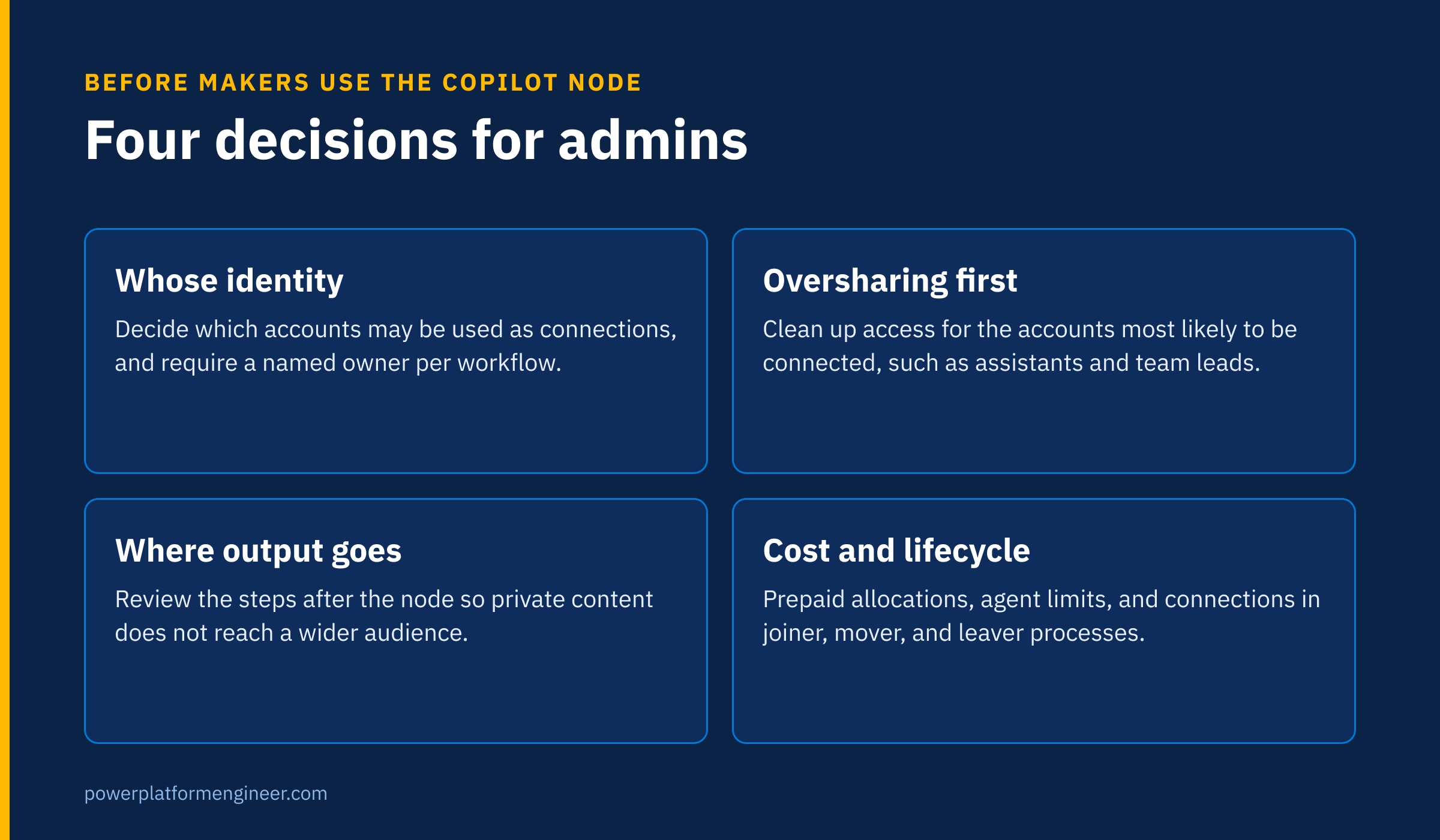
A checklist before makers use the Copilot node
- Decide whose identities may be used as Copilot node connections, and require a named owner for every workflow that uses one.
- Prioritize oversharing cleanup for the accounts most likely to be used, such as assistants, team leads, and shared-process owners.
- Review where each workflow sends the node’s output, and block destinations that would widen the audience for private content.
- Add Copilot node connections to joiner, mover, and leaver processes.
- Build these workflows in environments with prepaid allocation and agent limits, never in the default environment.
- Watch Cowork task consumption separately, since it uses Copilot Credits on every run.
The Copilot node is a sensible way to bring Microsoft 365 Copilot into structured automation. The capability is in the node; the risk is in the connection. Govern the connection and most of the rest follows.
Sources
- Add a Copilot node to a workflow, Microsoft Learn
- Workflows overview, Microsoft Learn
- What’s new in Copilot Studio, Microsoft Learn
- The GitHub Copilot harness in Copilot Studio is now the Microsoft Copilot harness, Microsoft Copilot Blog, October 28, 2026